Connecting your iPhone to your Windows computer via Bluetooth in MockGo lets you change your Pokemon Go location without using a modded app and prevents the Failed to Detect Location Error 12. Follow these steps to pair your devices safely.
Refresh your Bluetooth settings first to help your devices find each other.
Step 1. Open your iPhone Settings. Turn off Bluetooth and turn it back right away.
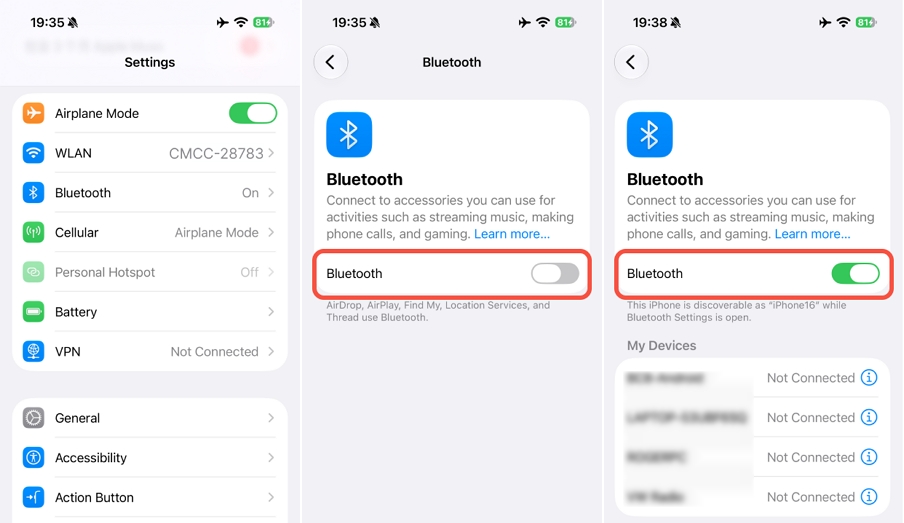
Now you need to link your iPhone and computer together.
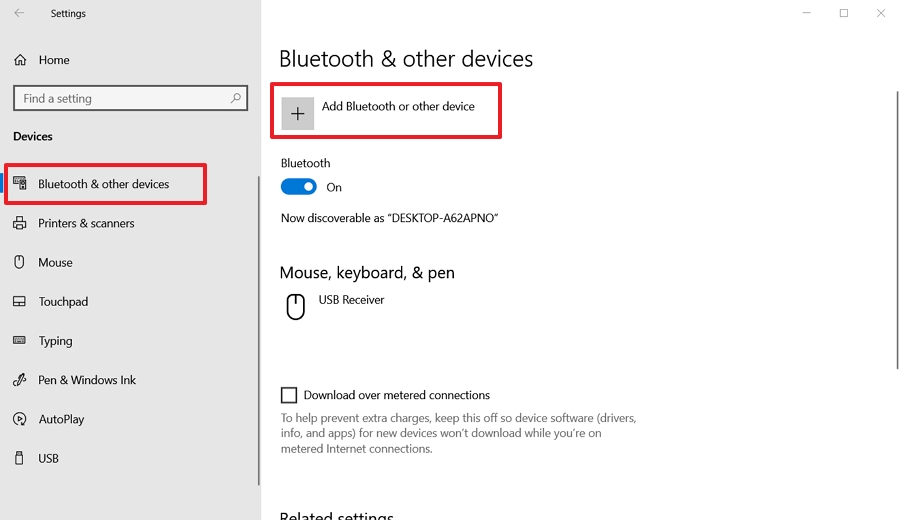
Step 2. Open your Windows Bluetooth Settings on your computer. Click Add Bluetooth or other device to proceed.
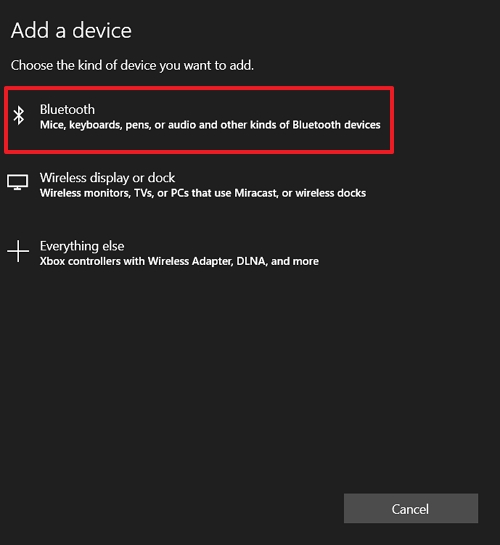
Step 3. Click Bluetooth in the Windows menu.
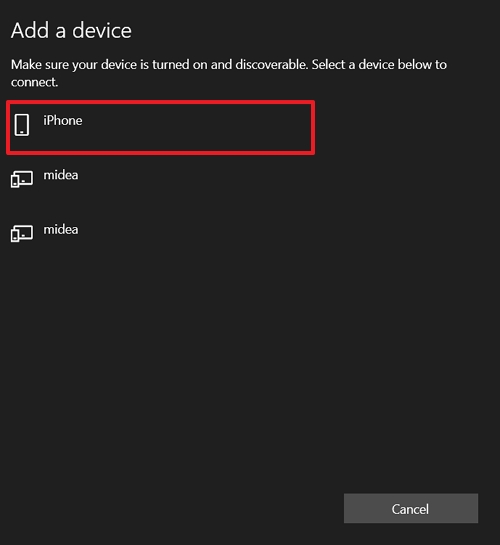
Step 4. Select your iPhone from the list.
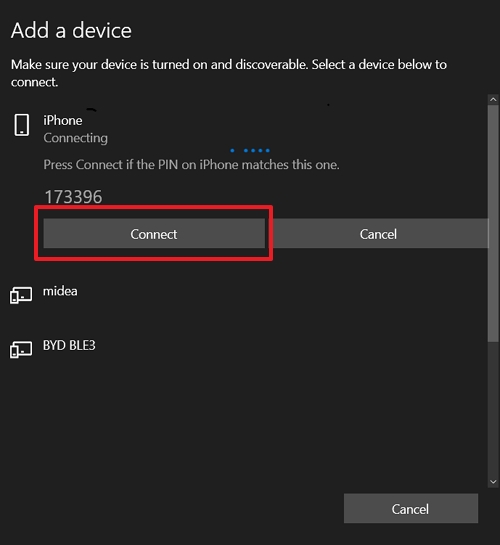
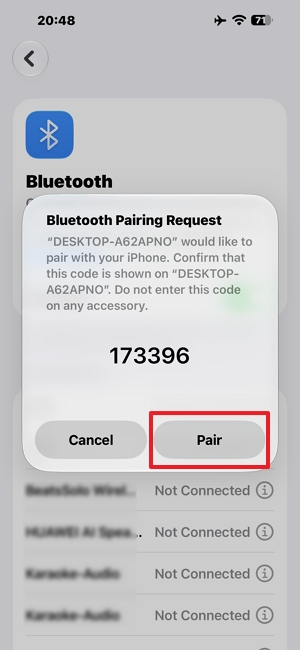
Step 5. Make sure the PIN code matches exactly on both your Windows PC and your iPhone. Click Connect on your computer.
Step 6. Click Pair on your iPhone.
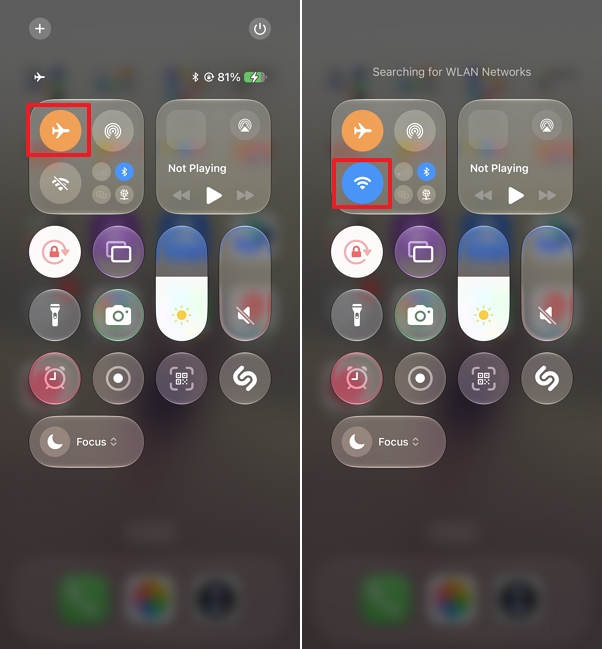
Step 7. Turn on Airplane Mode and turn on WiFi on your iPhone.
Complete these final steps to make sure MockGo connects to your iPhone via Bluetooth.
Step 8. Open MockGo and click the Bluetooth icon on the map.
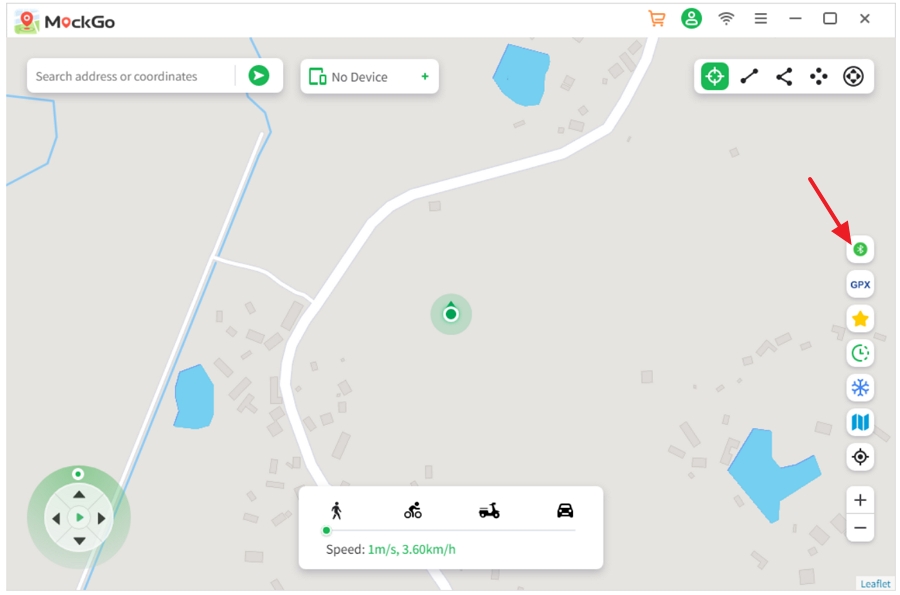
Step 9. Find your device name and click the connect button next to it in the list.
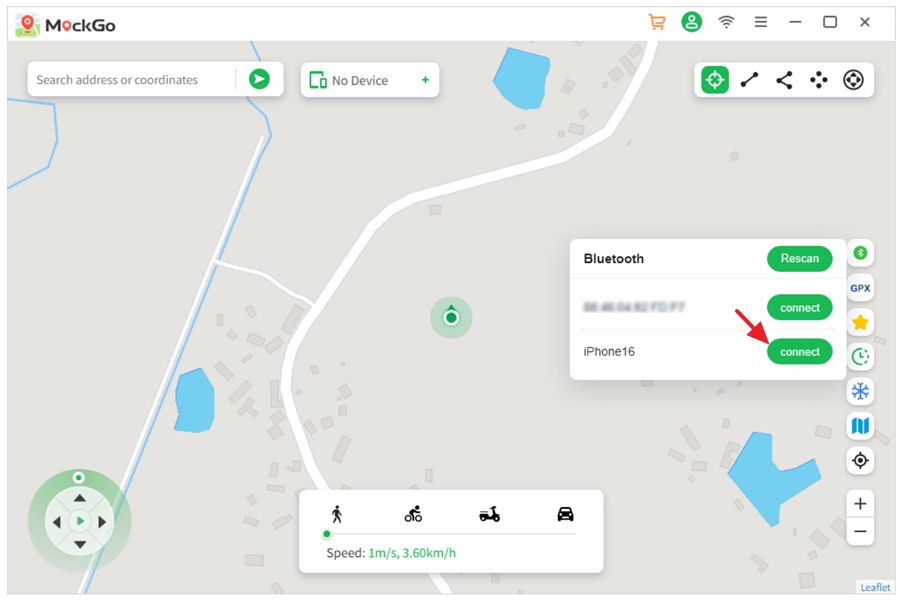
Step 10. Open the Maps app on your iPhone to complete the connection.
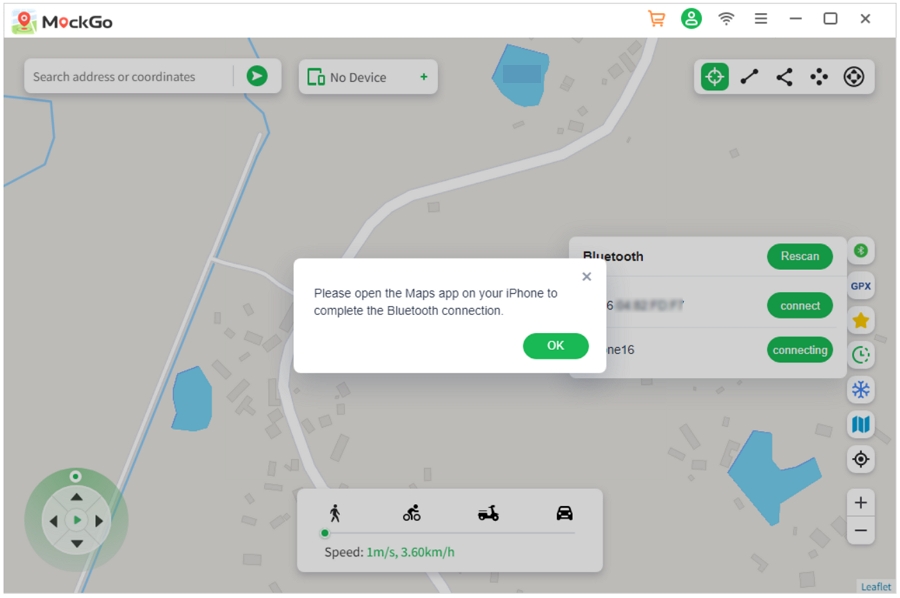
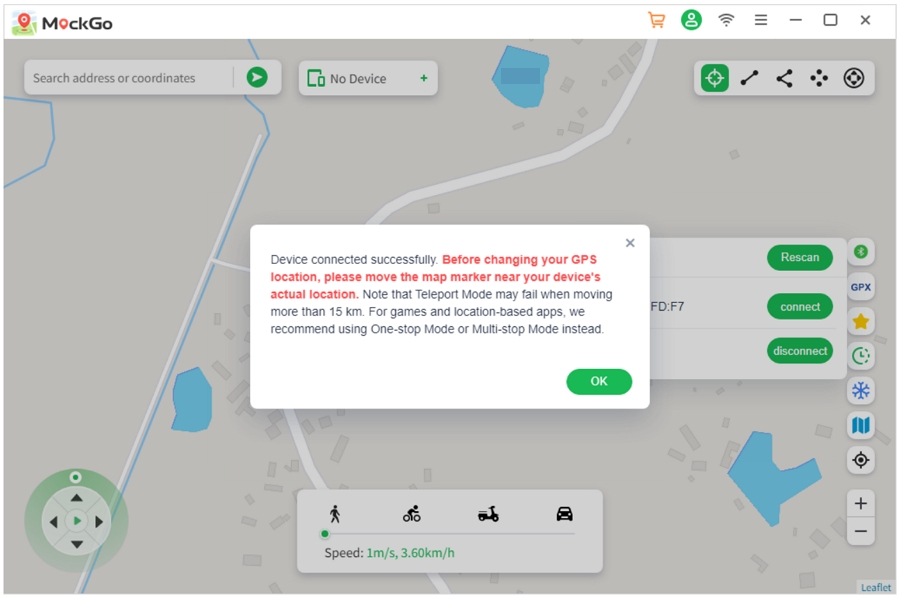
Step 11. MockGo will show a message confirming your device is connected successfully. You can now use the software to change your iPhone location.
Please remember a crucial safety rule for Bluetooth connections. You must move the map marker near your actual physical location before changing your GPS coordinates. Teleport Mode may fail if you move more than 15 km in a single jump. For games and location apps we highly recommend using One stop mode or Multi stop mode instead.




 MockGo - iPhone GPS Changer
 Unlockit iPhone - Screen Unlocker
 Unlockit iCloud - Activation Lock Remover
 Unlockit Android - Screen Unlocker
 TinyFix - iOS System Repair