MockGo Master

Fix Pokémon GO Error 12 Safely and for Free

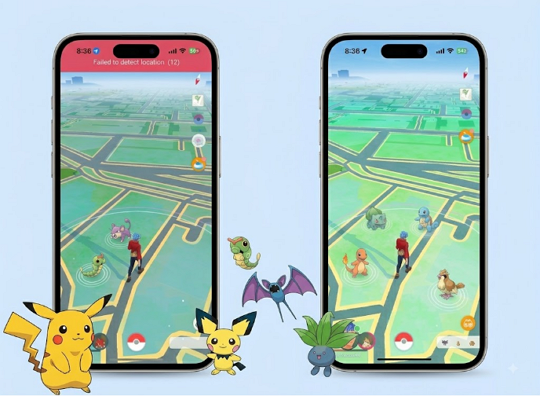
  • Bypass failed to detect location (12) Error instantly.
  • Works seamlessly with all major location changers.
  • Fully supports the latest iOS 26.
  • Completely free with no hidden costs.
  • Easy to use.
Free Download
For Windows 11/10/8/7
Buy Now
30-day money-back guarantee
MockGo Master

Play Pokémon GO Without Limits or Errors

Say Goodbye to GPS Errors

Stop letting location issues ruin your gameplay. MockGo Master instantly resolves frustrating blockers like Error 12 and Error 11. It stabilizes your GPS connection and eliminates frozen maps to guarantee a flawlessly smooth gaming experience.

Works Seamlessly with All Spoofers

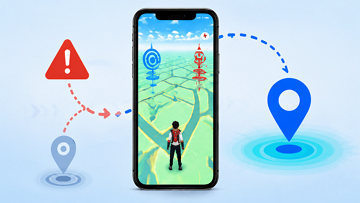
MockGo Master integrates perfectly with all major location changers on the market. You can safely catch regional exclusives and join global events. It creates a highly secure environment that completely shields your simulated movements from detection.

Bypass GPS Errors in 3 Simple Steps

MockGo has integrated with MockGo Master to successfully bypass the Failed to detect location error in Pokémon GO. As a thank you to our community, MockGo Master is completely free for all active MockGo subscribers.

Step 1. Download MockGo Master

Begin by installing the companion tool MockGo Master onto your Windows computer, or iMocker Master onto your macOS computer.

Free Download
For Windows 11/10/8/7
Free Download
For MacOS 10.10 or later

Step 2. Connect Your Device

Launch MockGo Master on your computer and connect your iPhone using a standard USB cable.
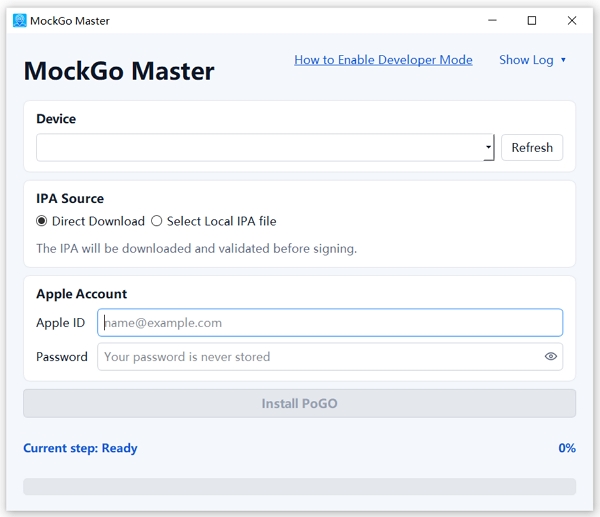
Connect Your Device

Step 3. Install the PoGO App

Please uninstall the official Pokémon GO app from your device before proceeding. Enter your Apple ID on the MockGo Master home screen to sign the installation package.

We guarantee absolute data privacy.Your credentials are used exclusively for Apple server verification and are never stored or collected by our software.

Select Direct Download and the program will automatically fetch and install the tailored Pokémon GO app onto your iPhone.
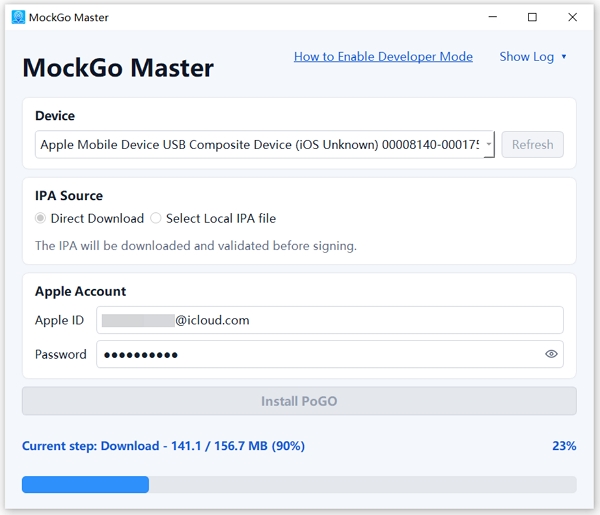
Install the PoGO App

Step 4. Trust the Developer Profile on Your iPhone

Once the installation finishes you must authorize the app on your iPhone. Open Settings navigate to General and tap VPN & Device Management. Locate your Apple ID under the Developer App section and tap Trust.
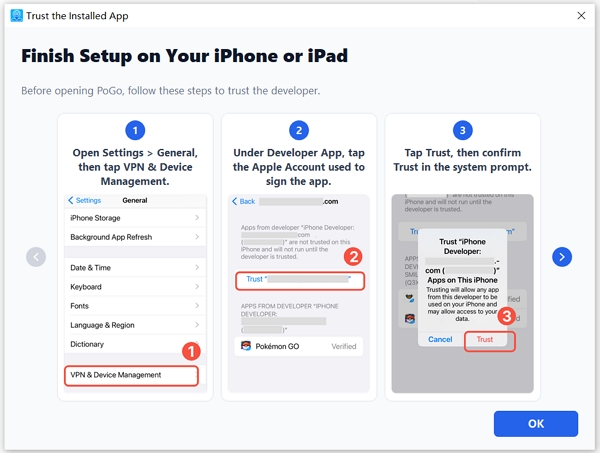
Trust the Developer Profile on Your iPhone

Step 5. Launch the Game

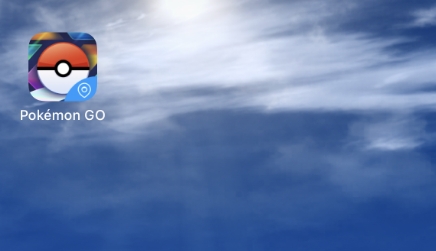
Open the newly installed game on your device. If the app crashes on the first attempt simply reopen it a few times until it stabilizes. We highly recommend testing the software with a secondary Pokémon GO account first to ensure total safety.

Please note that standard developer certificates expire after 7 days. You must reinstall the app through MockGo Master weekly to maintain uninterrupted access. If the game prompts you for a forced update simply uninstall it and perform a fresh installation using MockGo Master.
Launch the Game

Step 6. Start Changing Location with MockGo

With the PoGO app running successfully open your main MockGo software. You can now modify your GPS location flawlessly without triggering Error 12.


Free Download
For Windows 11/10/8/7
Free Download
For MacOS 10.10 or later

Start Changing Location with MockGo

Master Your Game Experience with MockGo Master Now!

Free Download
For Windows 11/10/8/7
Free Download
For MacOS 10.10 or later
Available for:

You May Also Care About

Find answers to the frequently asked questions here or write to us with any queries.
Is MockGo Master completely free?
Yes! MockGo Master is 100% free to use. There are no hidden fees, subscriptions, or in-app purchases required.
Do I need to jailbreak my iPhone to use MockGo Master?
No jailbreak is required. MockGo Master is designed to fix GPS errors and modify your location safely. This ensures that your device's warranty, operating system, and personal data remain completely secure.
Is MockGo Master safe for my device?
Absolutely. MockGo Master is a secure, lightweight utility tool. It does not jailbreak or harm your iOS operating system; it simply optimizes your device's environment for a safer, uninterrupted gaming experience.
How do I fix "Failed to detect location (Error 12)" permanently?
"Error 12" occurs when the game detects underlying GPS inconsistencies. To resolve this for good, simply run MockGo Master alongside your game. It effectively masks these inconsistencies, clearing the error and allowing you to play freely.
Why you need to sign in with your Apple ID during installation?
Signing in with your Apple ID allows MockGo Master to securely authenticate and install the optimized Pokémon GO application directly to your iPhone. This process utilizes Apple's official developer certificates, ensuring the game environment is fully trusted and shielding your account from third-party security risks.
Foneazy uses cookies to personalize your experience on our website. By continuing to use this site, you agree to our privacy policy. OK