Want to see people in another city on the Duet dating app? The answer depends on what you mean by "change location."
Duet says it may collect location information from your device, including GPS, Wi-Fi, the compass, accelerometer, and other sensors. It may also use your IP address and other information that indicates where you are or have been. Duet's Privacy Policy says it can collect latitude and longitude from your device when you grant permission.
That means changing your phone's GPS location is not necessarily the same as changing your profile city or every location-related part of the app.
Before changing anything, it helps to separate three different settings:
These can work differently. Changing your device GPS won't change your a profile field, and a discovery preference is not the same as changing your actual device location.
Duet is a location-based dating app. Its current Google Play and App Store listings say that Duet Clic can pair users based on location and zodiac sign compatibility. The app also offers additional filters through Duet Supreme, including height, education, purpose, and popularity.
Duet's official legal documentation confirms that location data can include device GPS and other sensors, IP address, account information that indicates location, and geotagged information.
However, Duet's public documentation does not currently provide a detailed guide showing that every user can manually enter any city they want. That distinction matters.
If your goal is simply to find more people in a wider area, first check the discovery controls available in your version of Duet. If your goal is to make your iPhone or Android device report a different GPS coordinate, you will need a device-level location method.

The exact menus can change as Duet updates its app. For that reason, start with the settings available in your current version rather than following an old screenshot or tutorial.
Do not assume that this changes the GPS location used by Duet. Duet treats account information and device geolocation as different types of location data in its Terms and Privacy Policy.
Duet's current store listing confirms that the app offers matching and filtering features, although the publicly listed Duet Supreme filters currently focus on criteria such as height, education, purpose, and popularity rather than documenting a universal manual city selector.
Review the options Duet provides for finding other users. If your version includes nearby, distance, or location-related preferences, adjust them to cover the area you want to explore.
A discovery filter changes who you see. It does not necessarily change the physical location reported by your phone.
If Duet is showing an outdated location, make sure it still has access to your device location.
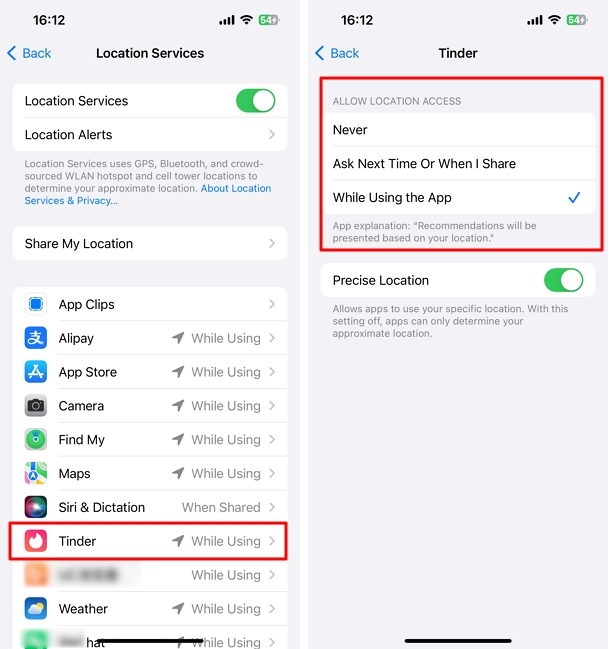
On iPhone:
Apple allows you to control an app's access to Location Services and choose whether it can use your precise location.
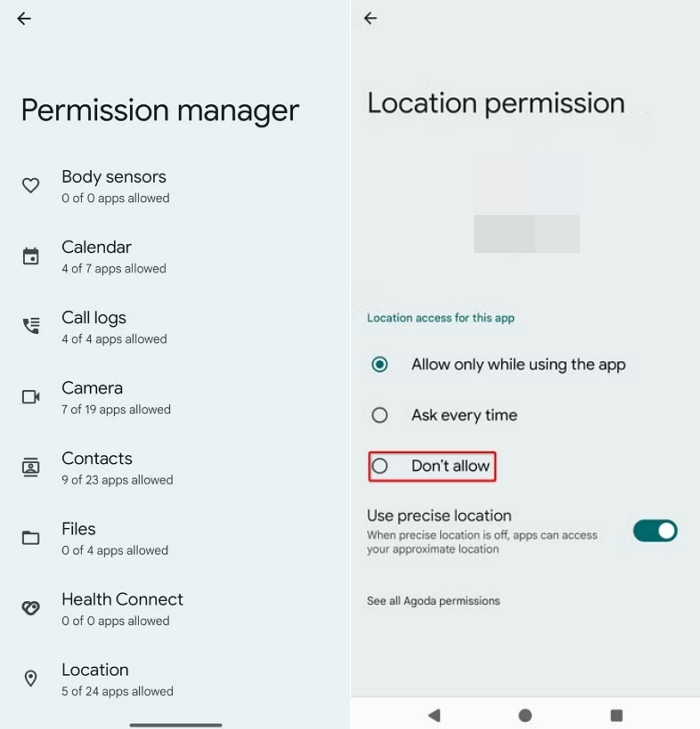
On Android:
Google's Android documentation explains that app location permissions can be reviewed through the device's location settings, although the exact menu can vary by phone manufacturer.
After changing permission settings, reopen Duet and check its location-dependent features again.
If you cannot find a manual city field, there may simply be no user-facing setting for it in your current version.
At that point, you can:
Duet currently lists [email protected] for user support.
Changing your device location can be useful when your current physical location does not match the area you want to explore.
The important point is that a device-level GPS change affects the location reported by your phone. It does not automatically guarantee that Duet will change every account or discovery setting associated with your profile.
iPhone does not provide a normal system setting that lets you type in an arbitrary GPS coordinate. Apple's built-in Location Services controls determine whether apps can access your location and whether they receive a precise or approximate location.
For users who need to change the GPS coordinates reported by an iPhone, Foneazy MockGo is a desktop-based location tool for Windows and Mac.
MockGo supports direct GPS changes through Teleport Mode, along with route simulation, joystick controls, favorites, GPX support, and USB or Wi-Fi connection options.
It changes the GPS location on your iPhone and it does not change the IP address of your internet connection or rewrite your Duet account information.
Step 1. Install MockGo
Download and install MockGo on your Windows PC or Mac.
Launch the program and prepare your iPhone for connection.

Step 2. Connect Your iPhone
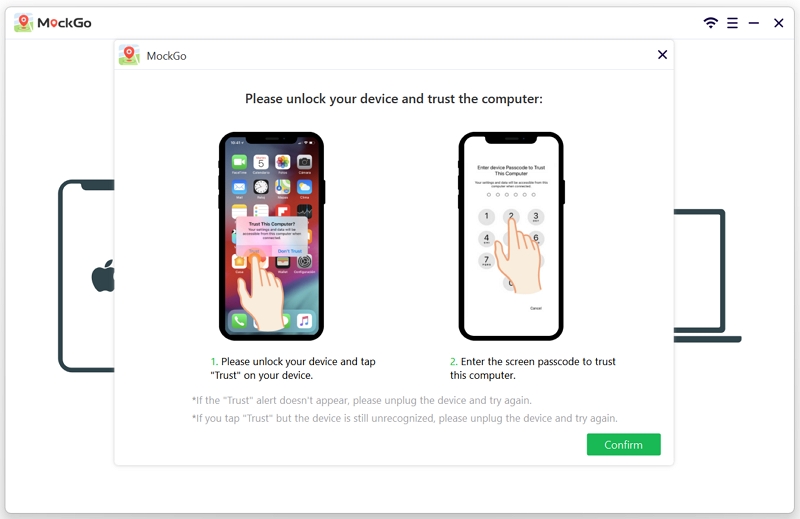
Connect the iPhone to your computer using a USB cable and follow the on-screen instructions to establish the connection.
Depending on your iOS version and MockGo setup, additional authorization or Developer Mode steps may be required.
Step 3. Select Teleport Mode
After the iPhone is connected, select Teleport Mode. This is the simplest option when you want to move the device directly to another city rather than simulate a route.

Step 4. Search for a Destination
Enter a city, address, or GPS coordinates in the search bar. MockGo will display the selected destination on the map.

Step 5. Click Move Here
Confirm the destination and click Move Here. MockGo's official guide says the device GPS location will then move to the selected coordinates.

Step 6. Reopen Duet
Close Duet and reopen it after changing the device location. Then check the location-dependent parts of the app to see whether they reflect the new coordinates.
Because Duet can use multiple types of location information, including device geolocation and IP address, a GPS change should not be presented as a guarantee that every Duet feature will immediately show the new city.
For a simple city change, Teleport Mode is usually the most straightforward option.
MockGo also supports One-Stop and Multi-Stop routes, joystick control, GPX imports, favorites, and multi-device management. Those features are more useful when you need to simulate movement rather than simply change your location.
Android has built-in support for mock location apps through Developer Options. Google documents the Select mock location app setting specifically for testing apps with a simulated GPS location.
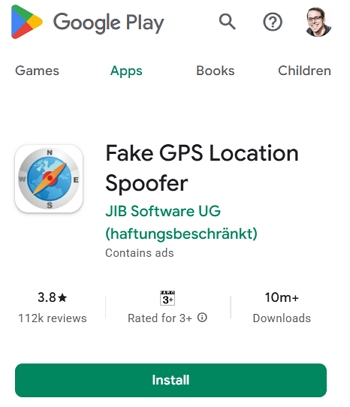
One current option on Google Play is Fake GPS Location Spoofer from JIB Software UG. It supports standard GPS spoofing across Android versions and provides a no-root mode on Android 6.0 and newer.
The exact menu names can vary between Samsung, Google Pixel, Xiaomi, OnePlus, and other Android phones.
Step 1. Install the App
Install Fake GPS Location Spoofer from Google Play. Open it once so Android can recognize it as an available mock-location application.
Step 2. Enable Developer Options and Select the Mock Location App
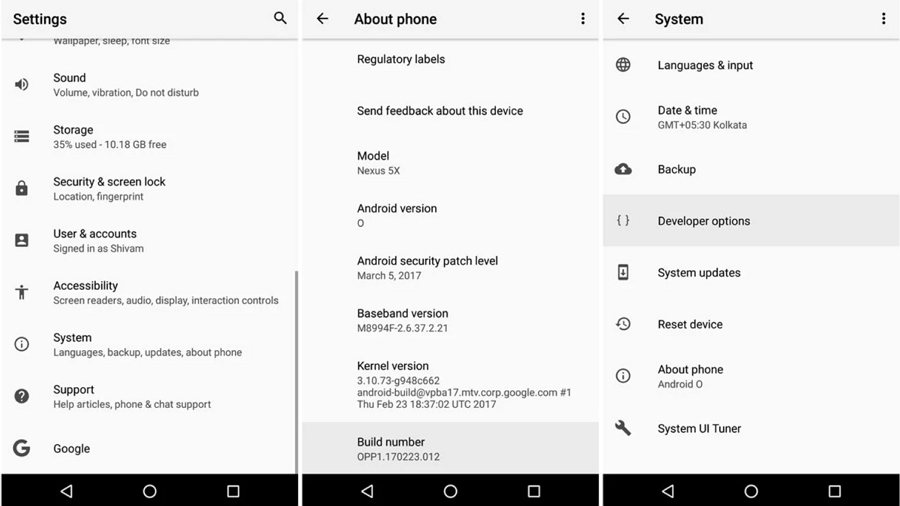
Open your phone's Settings and find About phone. Locate Build number and tap it repeatedly until Android confirms that Developer Options have been enabled.
Open Developer options. Find Select mock location app and choose Fake GPS Location Spoofer. Google confirms that Android provides this option for selecting an app to provide a simulated GPS location.
Step 3. Choose Your Destination
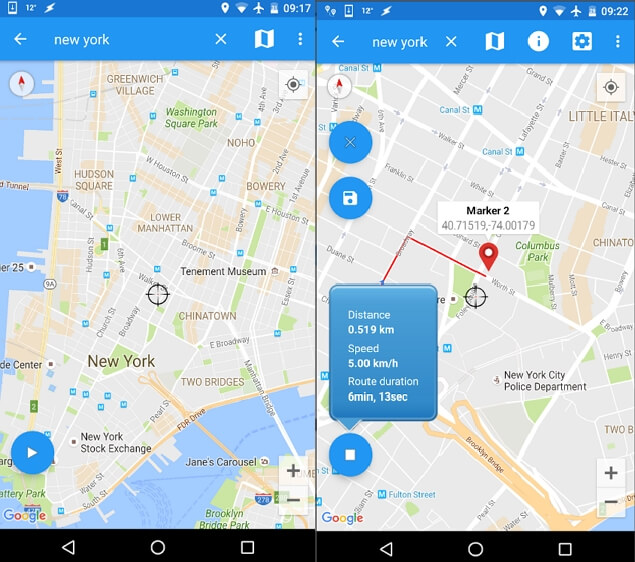
Open Fake GPS Location Spoofer and search for the city or location you want to use. Select the destination on the map, and tap the app's Play button to activate the selected location.
Step 4. Open Duet
Once the mock location is active, open Duet and check its location-dependent features. Remember that Android mock locations affect the device's GPS signal. They do not automatically change your IP address, account information, or other location signals Duet may use.
If Duet continues to show your old location, changing GPS again is not always the answer.
Duet's Terms say Location Data can include GPS, Wi-Fi, device sensors, IP address, account information, shared information, and geotagged content. A GPS tool changes the coordinates reported by your device. It does not change all of those other signals.
A city or location associated with your profile may be stored as account information rather than as a live GPS coordinate. Duet's public documentation does not confirm that changing device GPS automatically rewrites every location value shown on a profile.
After changing location permissions or a device-level GPS setting, completely close Duet and open it again. This gives the app another opportunity to request location information.
It is better to describe this as a practical troubleshooting step rather than a guaranteed "server refresh," because Duet does not publicly document a specific location-refresh interval.
Even when your device location changes, the people you see may also depend on Duet's matching and discovery logic. This is why changing GPS and adjusting discovery preferences should be treated as two separate steps.
Does changing GPS also change your Duet profile city?
No. Changing GPS affects the location reported by your device. A profile city or other account-level location information can be separate. Duet's documentation describes device geolocation and account information as different types of location data.
Does Duet use GPS location?
Yes. Duet's Terms say Location Data can include device location obtained through GPS, Wi-Fi, the compass, accelerometer, or other sensors. Its Privacy Policy also says it can collect latitude and longitude from the device when you grant permission.
Can I use Duet while traveling?
Yes. Duet is a location-aware social and dating app, and its current store listings describe features that use location for matching. When traveling, you can allow Duet to access your current location and use the location-dependent features available in your version of the app.
Can Duet detect location spoofing?
Duet's public documentation does not currently explain whether or how it detects GPS spoofing. Android itself provides APIs that allow apps to identify mock locations, so detection is technically possible on Android. That does not establish that Duet uses those APIs. For that reason, avoid claims that any particular GPS-changing method is guaranteed to be undetectable.
Why am I seeing matches outside my distance preferences?
The exact behavior can depend on Duet's matching and discovery system. Some user reviews report seeing profiles outside their preferred distance, but those reviews are individual experiences and should not be treated as official documentation of Duet's matching algorithm.
Also remember that Duet uses multiple location-related signals and matching features rather than a single GPS value.
How long does it take for Duet to update location?
Duet does not currently publish a specific time guarantee for location updates. After changing permissions or your device location, close and reopen the app and check again. If the problem continues, verify the location reported by your phone first and then contact Duet support at [email protected].
The right method to change location on Duet app depends on what you actually want to change. If you simply want to explore more people, start with Duet's own profile and discovery settings.
If you need to change the GPS coordinates reported by your phone, iPhone users can use a desktop location tool such as MockGo, while Android users can use a mock-location app through Developer Options.
Just remember that GPS is only one part of the location data Duet may use. Changing your device coordinates does not guarantee that your profile city, IP address, or every matching feature will change with it.
For the most predictable setup, check Duet's native settings first, verify your location permissions, then use a device-level GPS solution only when you need one.


Mako is a technical writer with a passion for all things tech. Whether you're wondering about how to fix your iPhone or Android device or trying to get something to work in your settings, Mako is your go-to for professional help. He loves writing, testing solutions, and most of all, making sure his research is factually accurate.



 MockGo - iPhone GPS Changer
 Unlockit iPhone - Screen Unlocker
 Unlockit iCloud - Activation Lock Remover
 Unlockit Android - Screen Unlocker
 TinyFix - iOS System Repair