Opening your Tinder app to find profiles located thousands of miles away completely defeats the purpose of local dating. If you live in Los Angeles but your swipe deck is filled with users from London or Tokyo your account settings are misconfigured.
Whether you accidentally toggled on global mode or got stuck in a virtual Passport location we will show you exactly how to turn off these features and force the algorithm to serve you local matches only.
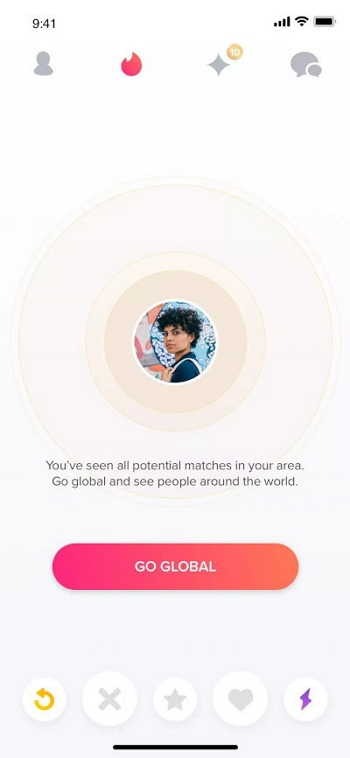
You need to understand how the Tinder algorithm processes location before you change your settings. Tinder originally launched Global mode in May 2020 during the worldwide pandemic.
The company introduced this feature to help daters make international connections when social distancing rules made local physical dating impossible.
In older versions of the app Global existed as a standalone free switch in your settings. However Tinder frequently updates its user interface and has begun phasing out or hiding the dedicated Global switch in newer app builds.
If you do not see a specific Global toggle in your menu today Tinder has either integrated international matching into its automatic distance expansion or your profile is currently stuck on a manual Passport location.
Users frequently confuse the free Global mode with the premium Passport feature when searching for ways to fix their location. Understanding the difference helps you troubleshoot your exact issue.
If your goal is to deliberately change location on Tinder to meet more people internationally these premium features are ideal. However if you only want to date in your hometown you must disable them completely.
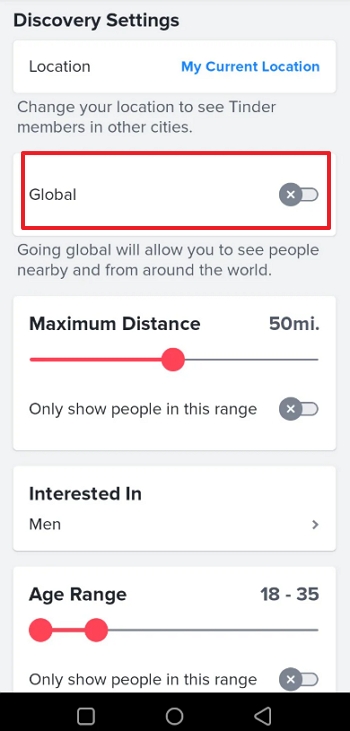
If your current app version still includes the standalone Global toggle you can disable it in seconds.
Step 1. Open Your Profile Settings
Launch the Tinder application and tap your profile icon in the bottom right corner of the screen. Tap the gear icon in the top right corner to access your main Settings menu.
Step 2. Navigate to Discovery Settings
Scroll down until you find the section labeled Discovery. This area controls exactly who you see and who sees you on the platform.
Step 3. Toggle Off Global
Look for the toggle labeled Global. Tap the switch to turn it off so the button turns grey. If this toggle does not appear in your settings menu skip directly to the next section to reset your location manually.
Many users who want to turn off global actually activated Passport mode in the past and forgot to reset their position. If you manually selected a different city your profile will remain permanently stuck in that location until you manually force the app back to your physical GPS.
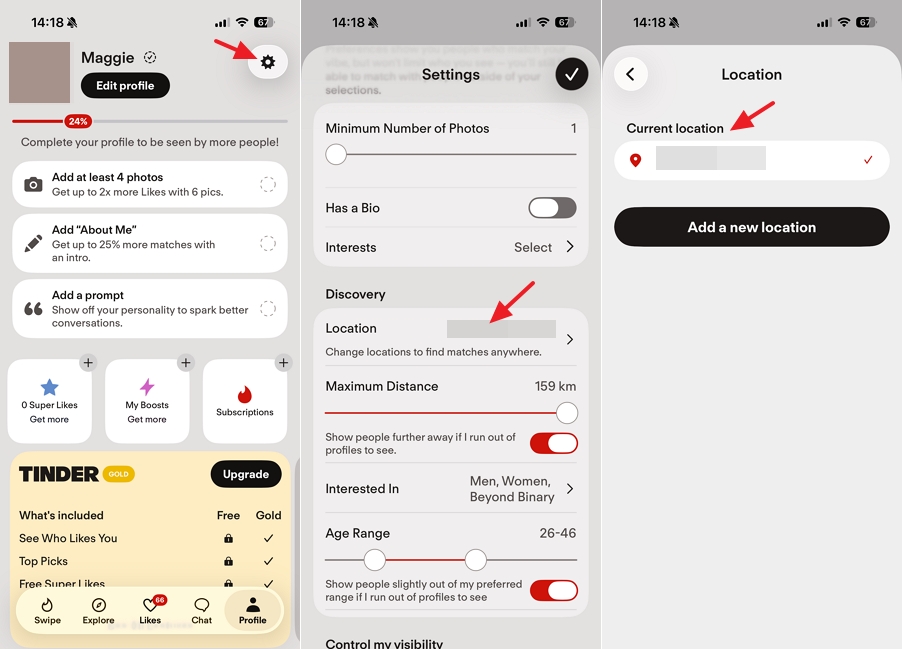
Step 1. Go to Settings
Open Tinder on your device. Tap the profile icon and click the Settings icon.
Step 2. Select Current Location
Scroll to the Discovery section and tap Location. You will see a list of saved cities alongside a blue checkmark next to your custom location. Tap the top option labeled Current Location.
Step 3. Confirm GPS Synchronization
Ensure the checkmark moves back to Current Location. This action immediately deletes your active Passport pin and forces the application to pull fresh coordinates directly from your device hardware GPS.
Understanding exactly when Tinder automatically updates your location helps you ensure your profile is visible in the correct city after this reset.
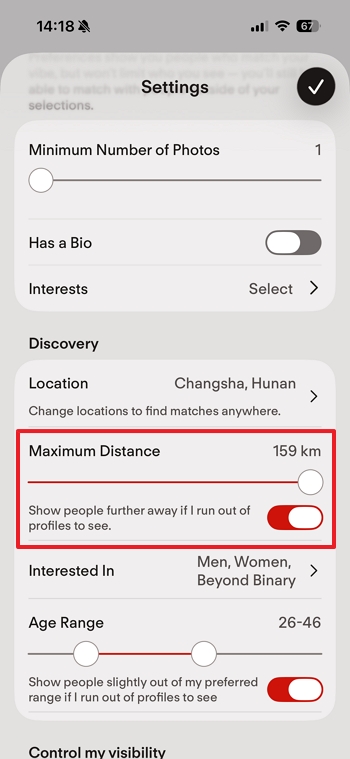
Disabling global features or turning off Passport is only half the battle. To guarantee you only see viable local dates you must actively restrict your Discovery distance.
If your maximum distance slider remains set to 100 miles you will still encounter profiles from neighboring states or across international borders.
Return to your Discovery settings and locate the Maximum Distance slider. Slide this down to a realistic commuting radius of 10 to 30 miles. Directly below this slider you must look for a toggle labeled Show people further away if I run out of profiles to see. You must turn this specific switch off immediately.
Depending on your exact app version this setting might alternatively be labeled Only show people in this range which you should turn on.
Disabling the automatic distance expansion forces the Tinder algorithm to respect your boundaries strictly preventing the app from sneaking distant profiles into your stack when your local dating pool runs dry.
Many users reset their location and restrict their distance but still occasionally see foreign profiles. This happens for several technical and behavioral reasons.
Tinder caches profiles on your device. The first few swipes after changing your settings might still show distant users already loaded into your phone memory. You must force close the application completely and reopen it to refresh the server algorithm.
More importantly you cannot control other users. If you live in New York and turn off global features you will stop searching globally. However a user in Paris might purchase Tinder Passport and virtually place their profile in New York.
Because they are technically dropping their pin inside your local radius they will appear in your stack with a small location icon on their profile.
Finally ensure your smartphone is not connected to a Virtual Private Network. A VPN scrambles your IP address and frequently causes the Tinder backend to miscalculate your actual coordinates.
Furthermore if you recently attempted to change your device location and find your fake GPS not working on Tinder this improper configuration often leads to erratic profile recommendations.
If you want to maintain your privacy while swiping there are safer proven ways to trick Tinder location easily without breaking your algorithm.
Still Seeing International Profiles After Turning Off Global?
You are likely seeing premium users who are using the Passport feature to virtually visit your city. You might also have old profiles cached in your app. Force close the application to clear the cache and refresh your local stack.
How to Stop Tinder Showing People in Other Countries Without Deleting Account?
You do not need to delete your account. Simply reset your location to My Current Location reduce your Maximum Distance slider to a local radius and activate the switch labeled Only show people in this range.
How to Remove International Matches Already on Your Profile?
Changing your location settings does not delete existing matches. To remove someone you must open your chat with that specific person tap the shield icon in the top right corner and select Unmatch.
Does Turning Off Passport Cancel Tinder Gold or Platinum?
No. Changing your location settings within the application does not affect your active billing cycle. Tinder processes all premium subscriptions directly through your native device app store.
To stop future financial charges you must access your Apple App Store or Google Play Store account settings and cancel the recurring subscription manually.
Open your Tinder application right now and audit your Discovery settings. Verify that your location is set strictly to My Current Location and manually pull your distance slider back to a reasonable local radius.
Do not forget to activate the strict distance limit toggle to prevent the algorithm from expanding your search automatically. Managing these settings ensures you spend your time swiping on realistic local dates rather than digital tourists.




 MockGo - iPhone GPS Changer
 Unlockit iPhone - Screen Unlocker
 Unlockit iCloud - Activation Lock Remover
 Unlockit Android - Screen Unlocker
 TinyFix - iOS System Repair