In the eyes of the general public Yubo is often perceived as a gathering spot for teens to chat and flirt earning it the nickname of Tinder for Teens. However the true purpose of this social networking site which boasts over 60 million active subscribers is to facilitate new acquaintances and foster a genuine global community.
It operates as a live social discovery application utilizing live stream videos and profile swiping to help users connect with new people worldwide. In this complete guide we will explore exactly how to fake your location on Yubo for both iPhone and Android devices securely.
Before attempting to change your coordinates you must understand how the platform tracks you. Yubo utilizes your physical device GPS hardware alongside Wi-Fi network data to pinpoint your exact geographical position.
The matchmaking algorithm uses this real time location data to populate your swipe deck and suggest nearby live streams. The platform continuously pings your location while the application remains active on your screen ensuring you interact with users in your immediate physical vicinity.
However disabling location sharing on your Yubo account does not break the application experience. If you turn off location permissions entirely you can still access live streams from around the world and swipe on users with similar interests.
The platform simply restricts distance based features like filtering your swipe radius closer to your location or showing nearby live streams first. When location permissions are disabled Yubo defaults to tailoring your feed based on the original country you registered with during account creation.
While turning off location sharing protects your general privacy it does not allow you to browse specific foreign cities which makes active GPS spoofing necessary.
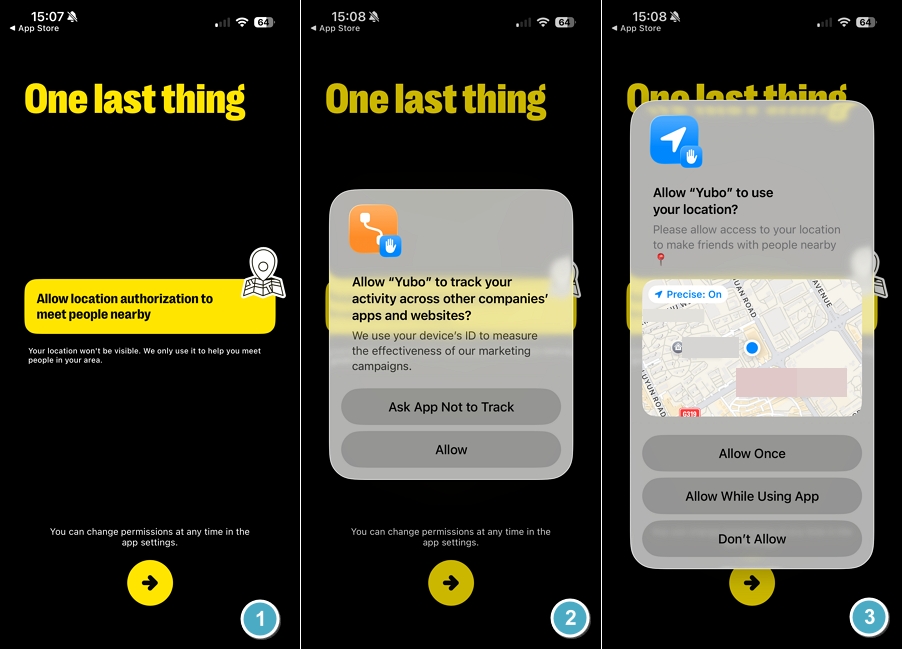
The primary reason users seek external spoofing tools is that Yubo strictly prohibits manual location entry. The platform officially states that it prioritizes an authentic user experience and intentionally blocks manual location changes to prevent potential trolls from manipulating the community.
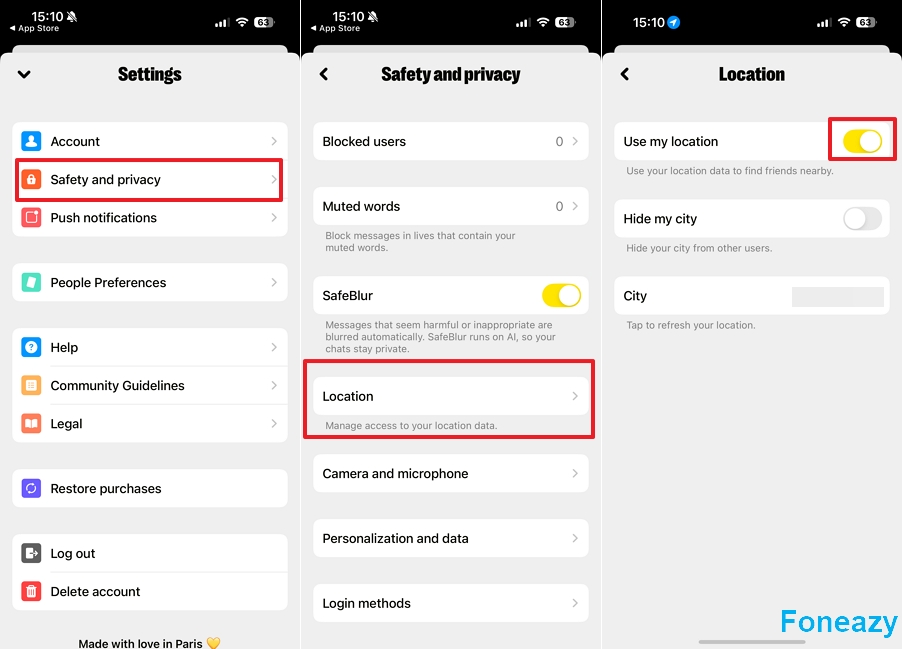
To update your location natively you must navigate to Settings then Safety and Privacy and select Location. From there you will find a toggle labeled Use my location. You can only activate this specific toggle to refresh your physical coordinates based on your actual device GPS.
Despite these strict safety measures legitimate users still require flexibility. If you are moving to a new city for business or planning a vacation in the near future you likely want to arrange dates and establish connections before you arrive.
Faking your GPS provides the only reliable workaround to bypass the native geographic restrictions allowing you to meet people from diverse cultural backgrounds in advance.
Understanding the technical differences between location tools is critical before you attempt to modify your device. Many competing online guides incorrectly recommend tools that simply do not work for mobile dating applications. You generally have three options to manage your location but they yield vastly different results.
The official Yubo settings prioritize safety. You can hide your location entirely or reduce the overall accuracy to protect your privacy. However these native settings completely fail to teleport you to a new city. They only restrict data rather than spoof it.
Virtual Private Networks represent the most common misunderstanding in location spoofing. A VPN encrypts your internet connection and successfully changes your IP address.
However Yubo relies entirely on your smartphone hardware GPS coordinates rather than your network IP address. Running a VPN will not change your swipe deck and frequently causes the application to freeze due to conflicting network data.
Hardware GPS spoofing remains the only legitimate method to change your Yubo location. A dedicated GPS spoofer intercepts the location requests at the operating system level and feeds fake coordinates directly to the Yubo application. T
his method requires specific desktop software or developer applications. While it carries a slight account risk if you jump between countries too quickly it guarantees that you will actually match with users in your targeted destination.
With the assistance of MockGo a professional GPS changer software for iOS you can easily change your iPhone coordinates and teleport your Yubo profile anywhere in the world. This allows you to arrange meetups with new friends far outside your immediate vicinity.
MockGo offers a premium full screen map interface allowing you to pinpoint the exact location you want to fake with perfect visual clarity. The software supports advanced features including walking simulation and joystick controls while enabling users to spoof locations for up to five iOS devices simultaneously.
It is fully compatible with all modern Apple operating systems spanning from iOS 15 directly to the newly designated iOS 26 release.
Step 1. Download the Software
Download MockGo on your Mac or Windows computer and launch the program immediately after installation.
Step 2. Connect Your Device
Connect your iPhone to your computer using a secure cable and select Start from the main interface.

Step 3. Select Teleport Mode
Look at the map interface on the following page and choose the first icon in the upper right corner to activate Teleport mode.

Step 4. Enter Your Desired City
Specify where you wish to teleport by typing the city name into the search field and click Go.

Step 5. Move to Your New Location
MockGo will display your new preferred coordinates. Simply click Move Here to instantly teleport your Yubo destination.

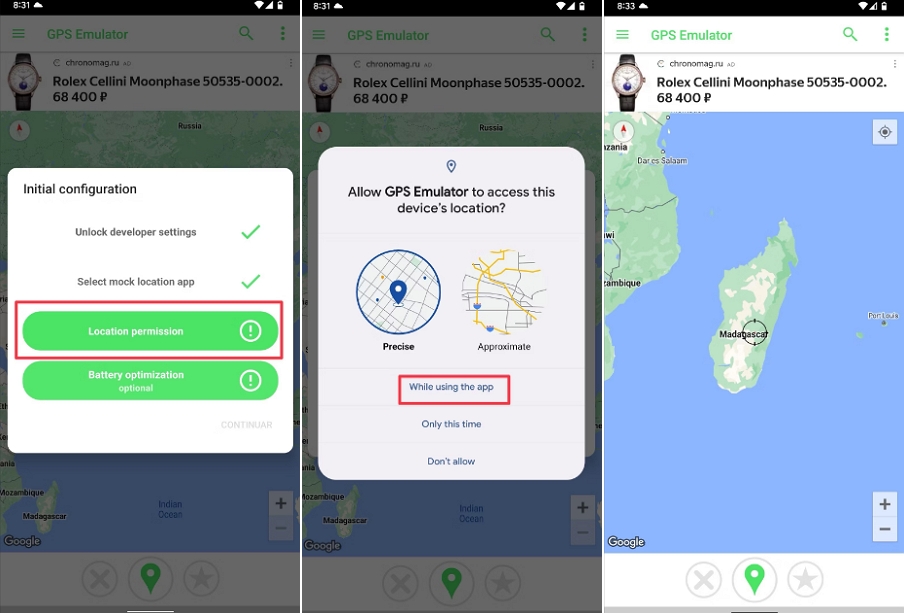
To spoof your location on Android devices you can utilize a native location spoofing application directly from the Play Store. While several options exist we highly recommend using the GPS Emulator app due to its consistent reliability and high user ratings.
Step 1. Install the Application
Begin by opening the Google Play Store to download and install the GPS Emulator application on your Android device.
Step 2. Enable Developer Options
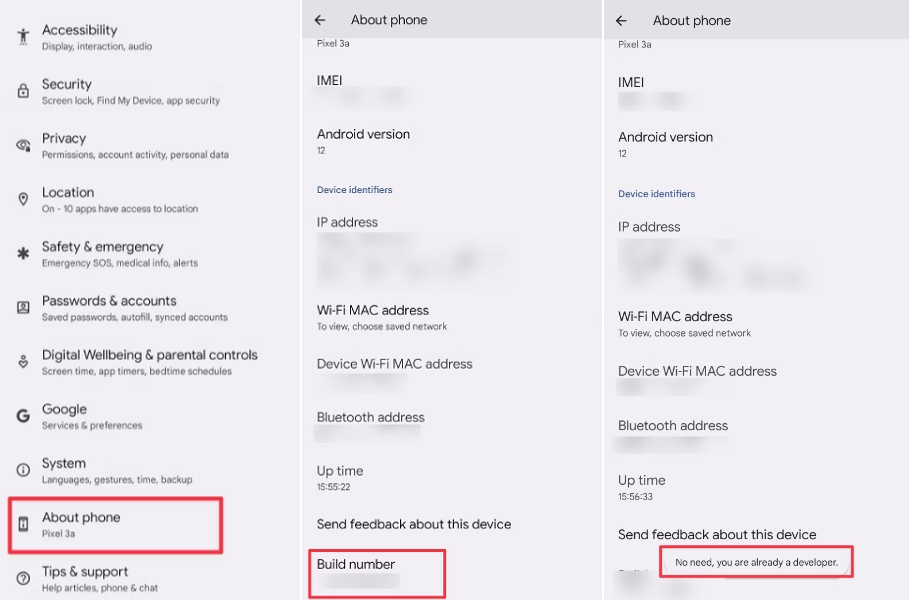
Navigate to your phone Settings tap About phone and find the Build number. Tap this exact field seven times until your device confirms you are in developer mode.
Step 3. Select the Mock Location App
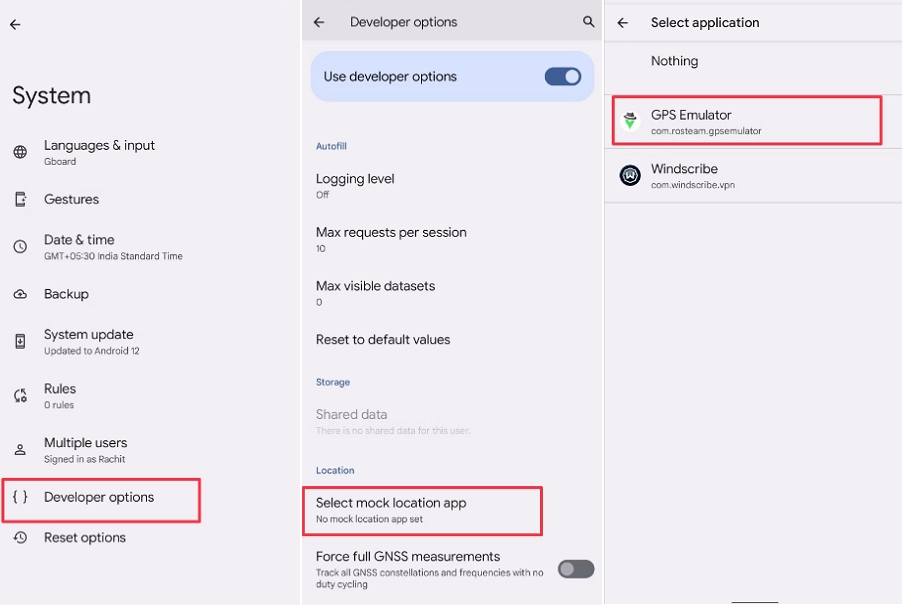
Proceed to your Settings menu open System and tap Developer Options. Scroll down to Select mock location app and choose GPS Emulator from the list.
Step 4. Launch and Teleport
Launch the GPS Emulator application. When prompted grant the necessary location permissions by tapping Allow. Finally use the map interface to select your desired fake location and activate the spoofing.
You have successfully spoofed your Android device location. Open the Yubo application to confirm your swipe deck now reflects your newly chosen city.
While Yubo continuously strives to improve its platform there is currently no built in feature to expand your matching options without physically traveling to a new city.
Fortunately you can fake your GPS location on Yubo safely and efficiently by using dedicated programs like Foneazy MockGo for iOS and GPS Emulator app for Android.
Managing your location through these proven methods ensures your account remains active while you connect with exciting new friends globally.


Mako is a technical writer with a passion for all things tech. Whether you're wondering about how to fix your iPhone or Android device or trying to get something to work in your settings, Mako is your go-to for professional help. He loves writing, testing solutions, and most of all, making sure his research is factually accurate.



 MockGo - iPhone GPS Changer
 Unlockit iPhone - Screen Unlocker
 Unlockit iCloud - Activation Lock Remover
 Unlockit Android - Screen Unlocker
 TinyFix - iOS System Repair